Organize: plan, track, and budget all your pre- and post-production work
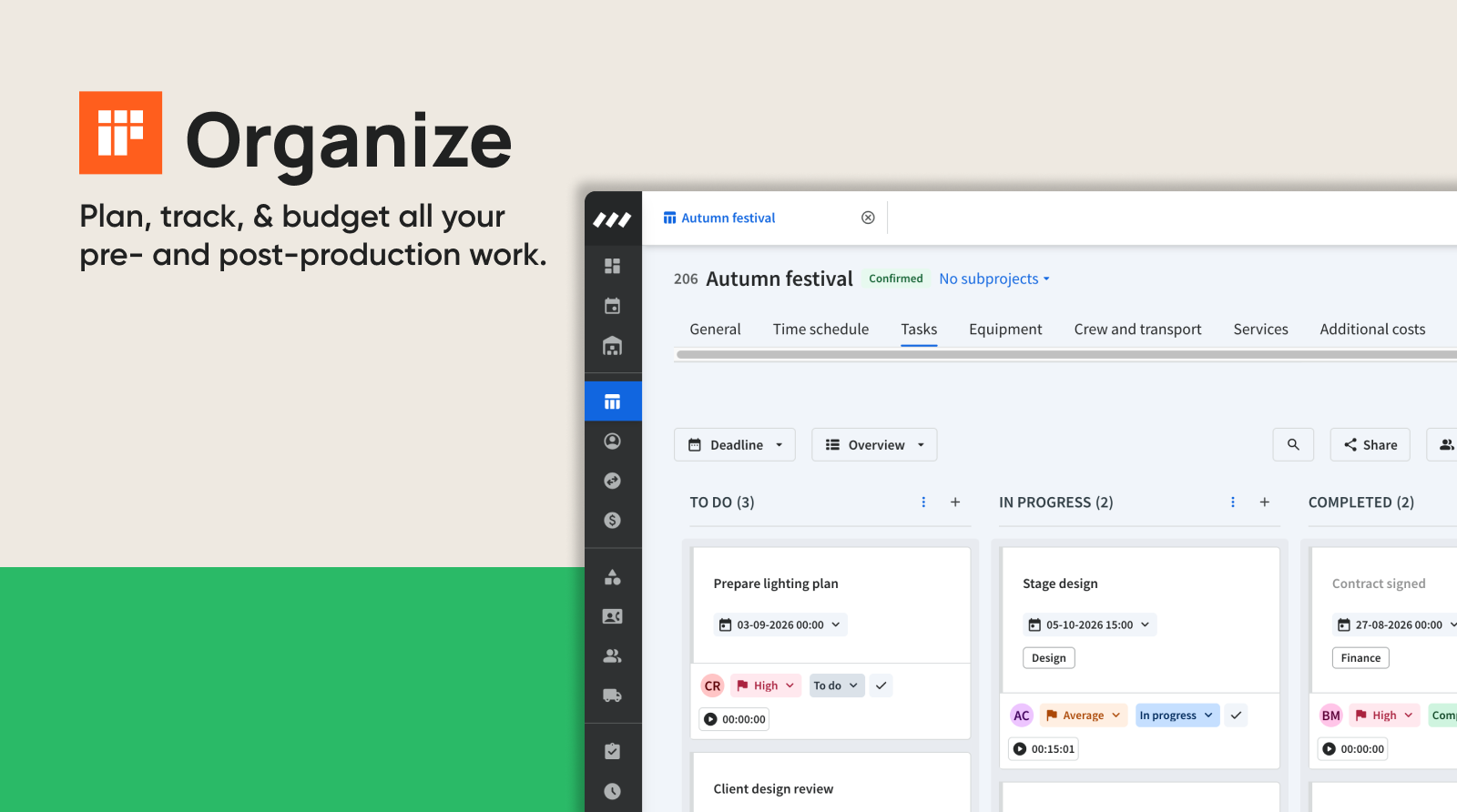
Every live event has a version of the work no one sees. Before the doors open, someone is drawing a stage design, chasing a client approval, briefing the workshop, and building the plan that makes the day run. After the last case is packed, someone is still logging the final hours and closing the project out. It's real work, it takes real hours, and until now most of it has lived outside Rentman, in a spreadsheet, a separate task tool, and a few long email threads.
That's the part that quietly costs you. When the prep and wrap-up hours aren't tracked anywhere, you can't see how a project is really going, and you can't tell whether the price you quoted covered the work you actually did.
Introducing Organize, a new product that brings all of that pre- and post-production work into Rentman, right next to your inventory, crew, and finances. Plan every task so nothing slips, see progress across your whole team, and track the time your work takes, so you can quote, plan, and invoice from what really happened instead of a guess.
Now you can:
- Plan every pre- and post-production task in one place, from design and workshop builds to client follow-ups and office work.
- See what's on track and what's behind on shared visual boards, by project, team, or person.
- Track the hours your prep and wrap-up work really takes, against the time you planned per task.
- Charge for that work as a billable Service on your quotes, and track your margins from real data.
How to use Organize in Rentman
Take a stage build for a returning client's summer festival. There's design work to sell, a build to plan, hours to track, and a margin to protect. Here's how that pre- and post-production work runs in Organize, from the first quote to the next one.
Set up the project and quote the billable work
Start the project the way you always do, setting up your details, the inventory and crew. You list the design and set-build work you're going to charge for as a Service: give it a price, an hourly cost rate, and budgeted time, and it lands on the quote in its own section. The client sees the full scope of what they're paying for, and the planning and design hours that used to be free are now on the quote.
Tip: If it's work you sell often, save it as a default Service and reuse it on the next project. Give a default Service its own set of tasks once, and every time you add the Service to a project, those tasks are created with it.
Once it's confirmed, break the work into tasks
The quote is signed, now the work begins. Add every aspect of the work as a task on the project's Tasks tab: produce the stage design, get the client's sign-off, build the set piece, prep the load-in, and handle the wrap-up afterward. Give each one an owner, a deadline, and a planned time (the hours you expect it to take), and link the billable ones to each Service so their hours roll up into it.
Share the project board with everyone on the job, including the freelance designer and the workshop crew, so everyone works from the same plan.
Tip: Group the board by status to run the project like a pipeline, or by assignee to see who has too much on at a glance.
Track the time the work actually takes
This is the part that has been invisible. As your team works, they can log hours straight onto their tasks, from their desk or the Rentman app. Every task shows the time you planned next to the hours actually spent, so when the designer's work is running long, you see it while there's still time to do something about it, not weeks later when the numbers don't add up.
Tip: Switch the board to list view and apply a tracked-time view to read the whole project as planned versus actual, task by task.
Check your financials: cost versus price
Because the hours logged on those tasks roll up into the Service, you can see the real margin on the work you sold. Compare what you charged with what it actually cost, and you know whether the price covered the job, or how much it affected your margin.
Quote and plan the next one more accurately
Months later, a similar festival brief lands. Instead of guessing at the prep hours, you open the finished project and see exactly what it took: the real hours on design, on the build, on the wrap-up. You quote the next one from what actually happened, and you win it knowing the margin is real.
Every project you run leaves a record of what the work really costs, so your quotes get more accurate, your margins hold, and fewer hours slip through unaccounted for.
Not everything lives on a single project
Not all of your work belongs to one event. Internal jobs, admin, the office tasks that keep the company running: those can be tasks too, with the same owners, deadlines, and planned time, so the work that used to live in someone's head or a side list is captured with everything else.
Every task lives in the Tasks module, so there's one home for all the work, project or not. From there, a task board is simply a way to see it. The project board you just built answers "how is this project going?", one project, every team on it. A team board answers "what is my team working on this week?", by pulling one team's tasks from across every project into a single view. Say your Design team has a stage design due for this festival, a booth render for another client, and client approval pending: instead of digging through three separate projects, they open one board and see their whole week at a glance.
Get started with Organize
Organize is available now, starting at €/$14 per power user. If you're already a Rentman customer, start a free trial from your workspace. If you're new to Rentman, start your 30-day free trial with Organize included.
Note: To access Services as part of Organize, you'll need the Quoting & Invoicing add-on.
For a step-by-step walkthrough, see our complete guide to Organize, or reach out to your CSM or Rentman's support team for help.