4 tips to stay on top of your crew administration in the new year

The new year brings new projects, fresh schedules, and a chance to start clean. But it also surfaces the cracks in your crew admin, such as expired documents, outdated rates, or that leave request that somehow got missed in December.
Getting your crew administration organized now means fewer scheduling conflicts, clearer project margins, and less last-minute scrambling when production kicks into high season.
If you use Rentman's Crew product, your entire crew admin lives in one place, helping you schedule and communicate more efficiently. Here are four areas to check before your season ramps up:
1. Set up your leave management for the year
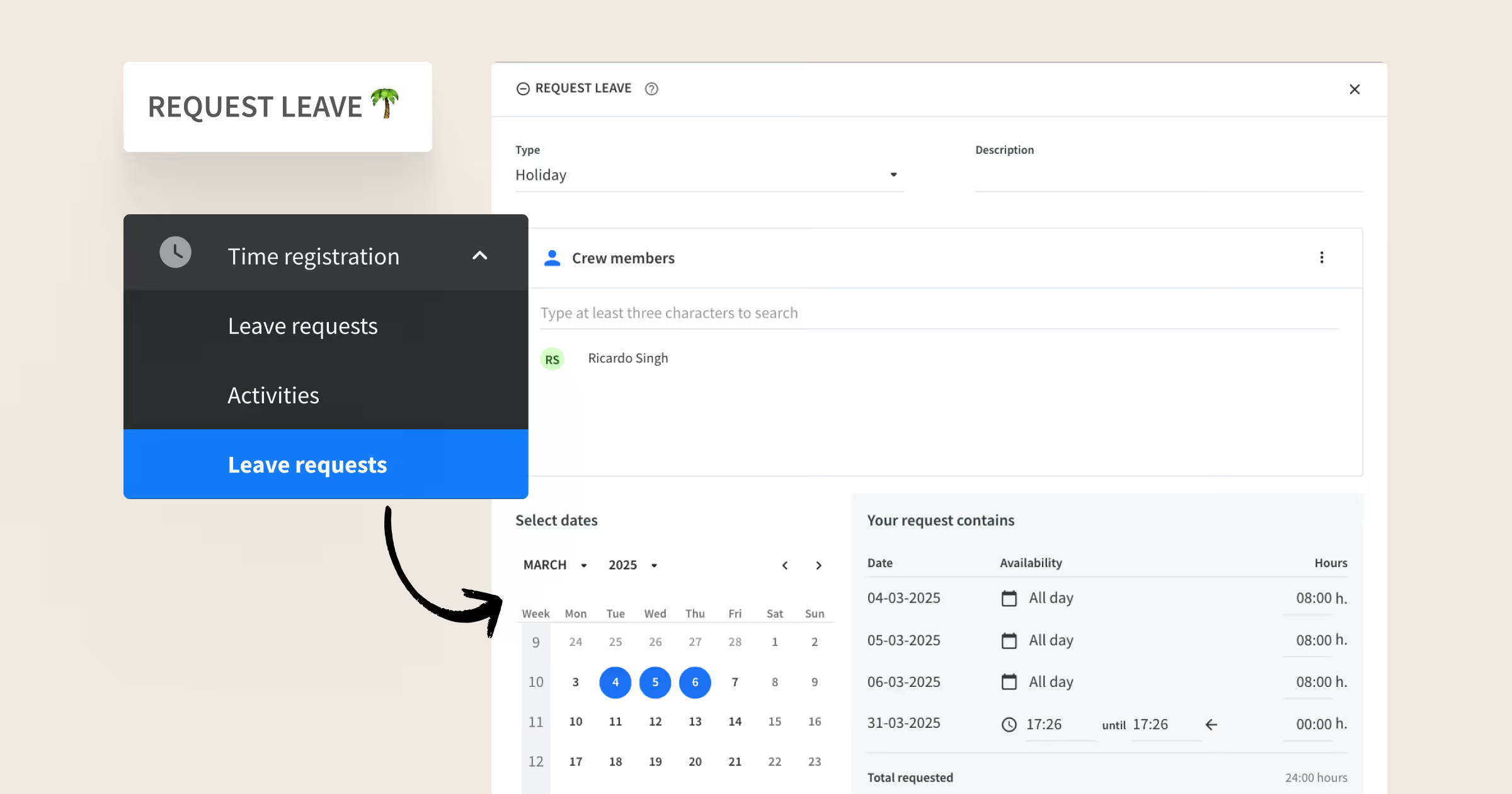
Leave requests are easy to miss until someone's unavailable for a crucial project. The best way to avoid these surprises is to sync your leave information with your crew planner. In Rentman, leave management and crew planning live in one platform, so you see conflicts before they become problems. When someone requests time off, you'll instantly see whether they're already scheduled for a project, without having to check multiple platforms or double-check sheets.
You can easily set up your leave management for the year in Rentman by:
- Setting up your leave types to match how your company operates. Add external references or payroll codes to keep everything synced with your payroll system—this prevents reconciliation headaches during busy season.
- Carrying over outstanding balances from last year. Export balances from your existing system and import them directly into Rentman from the ‘Crew members’ module. This means everyone starts the year with accurate balances—including your lighting tech, who saved three days from December.
Other quick tips on making the most out of your leave management system:
- Remind your crew how to request leave. A quick message now saves confusion later. In Rentman, crew can view their balances and submit requests from the desktop or mobile app.
- Easily approve requests as an administrator. Filter your leave requests view by "pending" to see only what needs attention, and check the sidebar for details showing any conflicts with scheduled work before you approve.
- Use different colors for each leave type for faster scanning.
- Check the HR view in ‘Crew members’ for a visual overview of all leave balances.
Want to get started? Learn more about Rentman's leave management to manage and approve leave requests with ease.
2. Make sure crew documents are current
.avif)
Expired driver's licenses or missing certifications can halt project planning. Now's the time to confirm you have everything you need and stored in one spot: your crew member's profile. This is especially valuable when you're scheduling crew and need to verify certifications before confidently planning them for the right job.
You can easily organize crew documents in Rentman by:
- Uploading documents directly to crew member profiles. Store certifications, licenses, insurance documents, and contracts in one central location that's easy to access when scheduling.
Quick tips on keeping crew documents organized:
- Do a quick audit now. Confirm you have all the required documents for each crew member before the busy season hits.
- Keep an eye on renewals. Keep track of when certifications or licenses expire so you're never caught off guard.
- Make it a habit to request documents up front. When onboarding new crew or seasonal staff, get all necessary documents stored in their profile from day one.
When you're planning crew for an event and need to confirm your riggers have current certifications before scheduling them, you can check everything instantly from their crew profile, without having to scramble through email threads or shared drives. Read more about Rentman’s Crew documents here.
3. Update crew rates for 2026
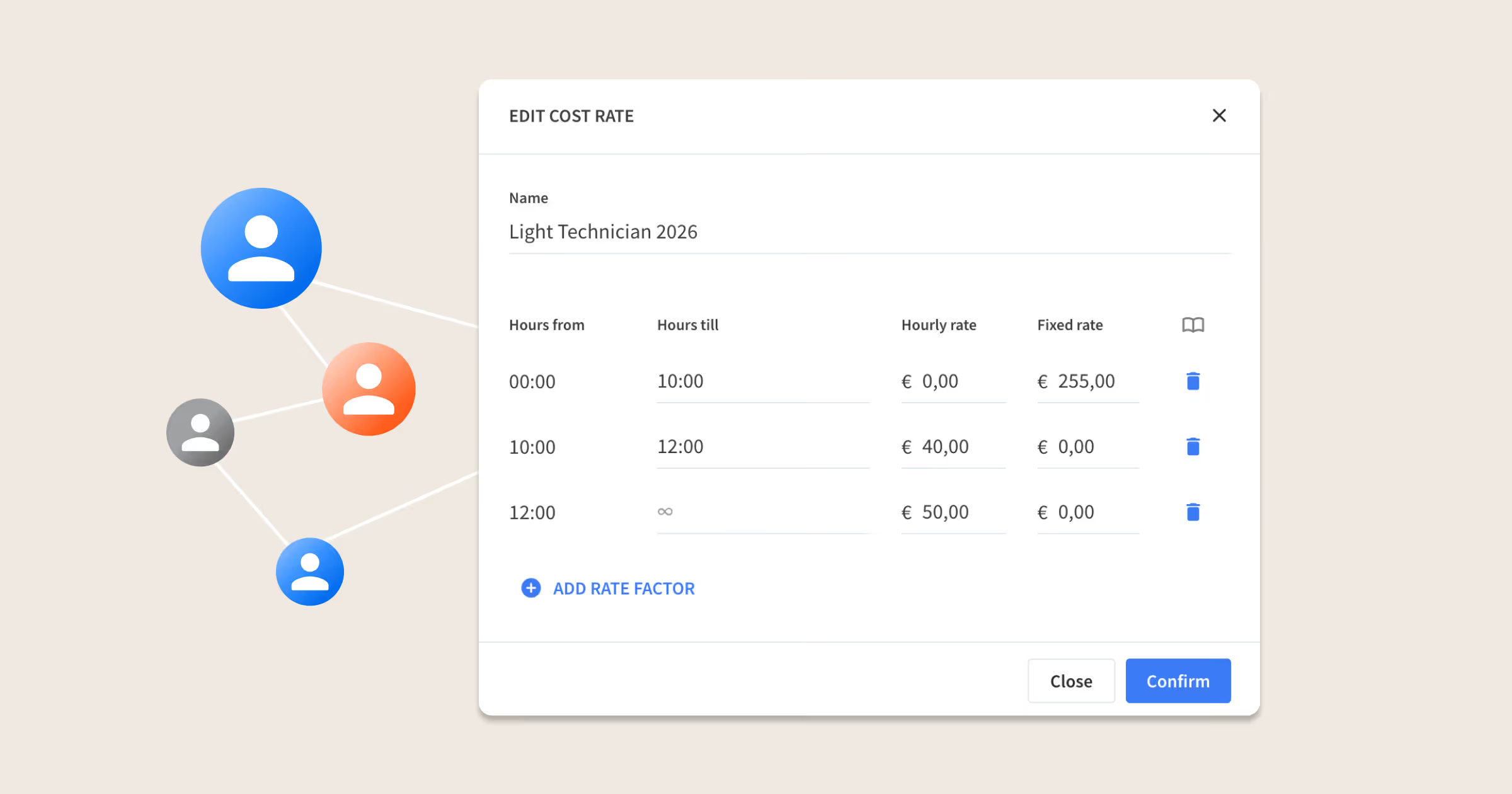
Your crew rates affect both what you charge clients and the margins on every project. So one key step is to make sure they're current for the new year. Using outdated rates means you could be undercharging clients or overestimating your margins without realizing it until you review financials.
For example, if you charge clients €50/hour for a senior lighting tech but pay them €45/hour, your margin is €5/hour. But if that tech rate rises to €47/hour this year and you haven't updated your rates, your actual margin is now €3/hour, which is €2 less than you think. Across a 300-hour festival season, that's €600 in lost margin you didn't account for.
The key is keeping your rates organized and easy to update. In Rentman, you can set up your 2026 rates while keeping your old ones visible for reference. Here’s how it works:
- Create new crew rates for 2026 rather than updating existing ones. This keeps your 2025 rates intact for visibility, while ensuring all 2026 projects use the latest rates automatically.
- Set both price rates and cost rates. Price rate = what you charge the client. Cost rate = what you pay your crew. Both are essential for accurate margin tracking.
Quick tips on managing crew rates:
- Review rates by function and by crew member. Some roles have standard rates, while specialists may command premium rates.
- Double-check project rate versions. Make sure new projects are using 2026 rates, not last year's rates.
Getting your rates right now means accurate budgets all year. If you need help setting up your rates in Rentman, watch our crew rates setup tutorial or read more about crew rates and overtime calculation in our support docs.
4. Check your time registration workflow
.avif)
Accurate time registrations are essential for paying your crew correctly, but manually checking each entry takes time and leaves room for mistakes. Adding an approval step before time registrations go to payroll solves both problems.
Take this example: your audio engineer was scheduled for 8 hours on a corporate event but logged 10 hours due to extended setup. With approvals enabled, you spot the difference immediately, verify it with the project scheduler, and approve the correct 10 hours, all before payroll runs.
In Rentman, you can start enabling time approvals by:
- Turning on the approval workflow in your configuration. Be sure to set your "Worked" hour type to require approval, so that you can verify registered hours before they go to payroll.
Quick tips on approving time registrations efficiently in Rentman.
- Filter for pending registrations. A new approval status column appears in your ‘Time registration’ overview, so you can quickly see what needs attention.
- Spot discrepancies with icons. These highlight issues like worked hours that differ from scheduled hours, or when crew members logged different hours for the same function.
- Edit before approving. Need to adjust something? Make changes directly, crew members get notified, and all adjustments are logged for transparency.
- Easily navigate between pending approvals. Review full details, approve, and move to the next registration without going back to the overview.
- Bulk approve straightforward registrations. Select multiple time registrations from the overview grid and approve them all at once.
- Walk your crew through the time registration process. In Rentman, they can register from desktop or the mobile app, with details from scheduled activities pre-filled. A quick training now saves back-and-forth later.
With this approval workflow in place, you'll catch discrepancies before payroll runs instead of after. Learn more about time registration approvals here.
Now your crew administration is ready for a smooth start to the year. With leave management set up, documents organized, rates updated, and an approval flow for time registrations, you can focus on what matters most: delivering great projects. When your crew admin is in order, everything else runs easier.
Not using Rentman’s Crew product yet? Learn how Rentman Crew helps you manage, schedule and keep your crew in sync.
Frequently asked questions